


VIDEOCAST V1 Live Mixer Compact 4-Channel HDMI Streaming Video Switcher
.webp)
.webp)

.webp)
Key Features
⏩🎥 4 HDMI Inputs
Connect up to 4 cameras, laptops, or media players for multi-source switching.
⏩ 📺 Multi-View Preview
Preview all inputs on one display before pushing them live.
⏩ 🎚️ T-Bar & Auto Transition
Smooth manual switching for professional live production.
⏩🎨 Picture-in-Picture (PIP) & Split Screen
Perfect for interviews, teaching, and live commentary.
⏩ 🔊 Built-in Audio Mixer
Mix embedded HDMI audio with external microphone or line input.
⏩ 💻 USB-C Output
Functions as a webcam, enabling direct streaming to OBS, Zoom, Teams, YouTube, Facebook, and other platforms.
⏩ 📱 Compact & Portable
Lightweight design, perfect for on-the-go live production.
⏩ ⚡ Plug & Play
No complex setup, ready for instant live streaming.
⏩ Auto Transitions
Cut, fade, wipe, and other effects.

Live Event


Control Multi Camera
.webp)

4 HDMI Input Connected


Key Applications
✅ 🎥 Live Events & Stage Shows
Multi-camera production for concerts, seminars, and conferences.
✅ 🏫 Education & Online Classes
Professional streaming for schools, colleges, and training centers.
✅ 🙏 Houses of Worship
Streaming church services, prayers, and spiritual events.
✅ 💼 Corporate Meetings & Webinars
Smooth switching for hybrid meetings, presentations, and launches.
✅ 📰 News & Media Broadcasting
Multi-source live news coverage and interviews.
✅ 🎮 E-Sports & Gaming Streams
Switch between gameplay, commentary, and live cams.
✅ 📱 Social Media Streaming
Direct live streaming to YouTube, Facebook, Zoom, Teams, and OBS.
✅🎤 Talk Shows & Interviews
Picture-in-picture and split screen for guests and hosts.
✅🎬 Film & Video Production
On-set monitoring and live switching for production teams.
✅🛍️ E-Commerce & Product Demos
Showcase multiple camera angles for live selling.
.webp)

Our Video Switcher Solutions
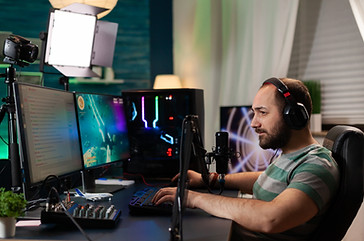
Live Game

.png)
Education

.png)
Wedding Live
.png)
Sport

.png)
Conference

.png)
Church
Frequently Asked Questions (FAQ)
1. How do I connect my cameras to the switcher?
Connect each camera to the HDMI input ports and power on the devices.
3. Why is one of my HDMI inputs not showing on screen?
Check the HDMI cable and confirm the source device is set to a supported resolution.
5. How can I see all camera feeds before going live?
Use the multi-view output to preview all connected sources.
7. How do I use picture-in-picture (PIP) mode?
Select the PIP option on the panel to display two video sources together.
2. How can I start live streaming from this switcher?
Connect the USB output to your computer and select it in your streaming software.
4. How do I switch between cameras during live streaming?
Press the input buttons or use the T-bar for smooth transitions.
6. Why is there no audio in my live stream?
Make sure the audio source is connected and audio is enabled in the switcher settings.
8. What should I do if the switcher is not detected by my computer?
Reconnect the USB cable and check that it is selected as the video device in your software.